Elementary, My Dear Galaxy: Just Call LLM
Posted on March 3, 2026 • 7 min read • 1,391 wordsProfile your photo library and much more in LLM-enabled Galaxy workflows
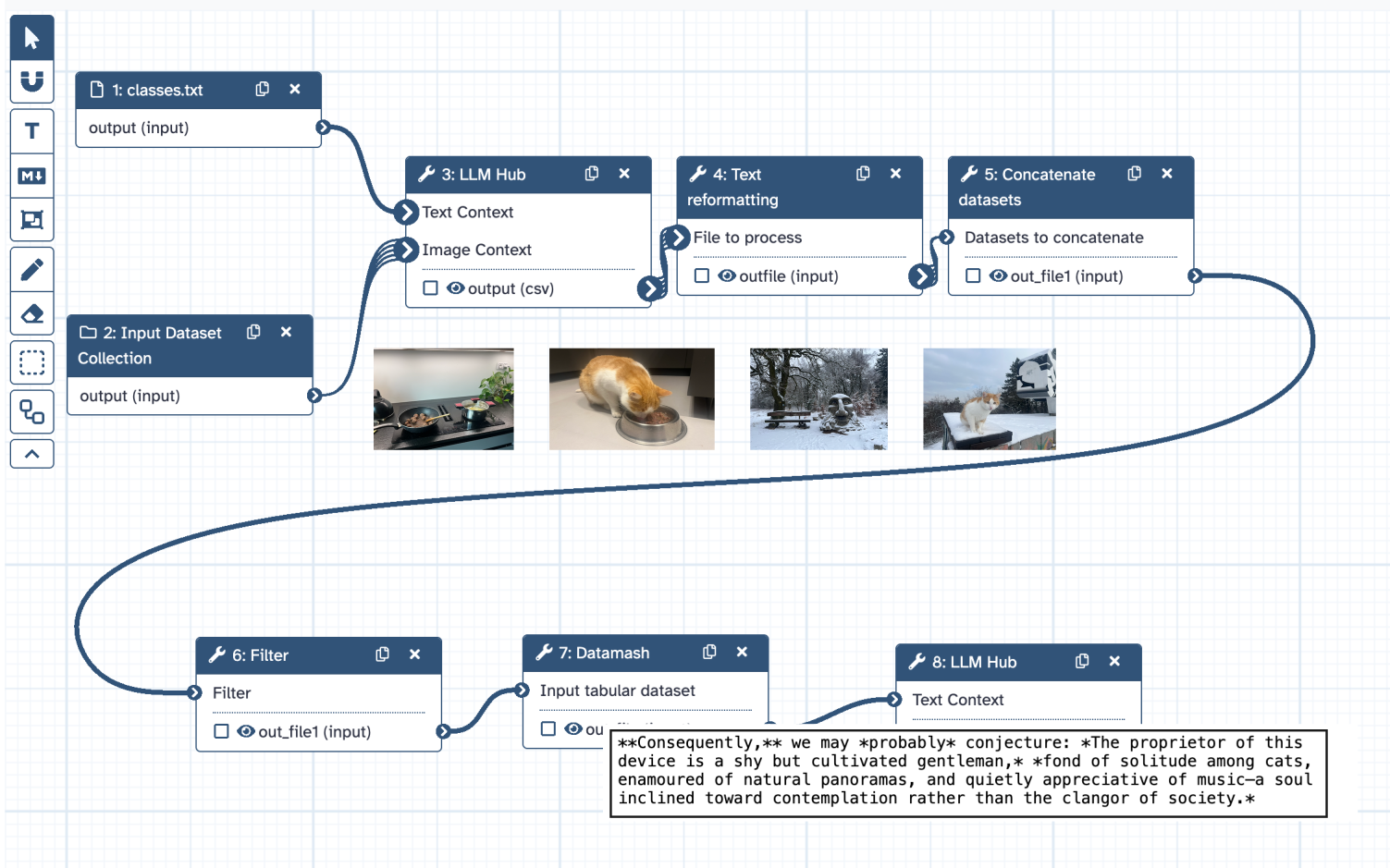
Step by step assembly of Galaxy workflow containing LLM calls
In this article we go step by step in assembling a Galaxy workflow from LLM calls and several conventional Galaxy tools. The use case itself is ridiculous, its only purpose (besides making fun) is a demonstration how these can work together and what is the added value of the Galaxy environment in such tasks.
Galaxy
Galaxy is a free, open-source system for analyzing data, authoring workflows, training and education, publishing tools, managing infrastructure, and more. galaxyproject.org
And that’s it, the quotation of the website summarizes everything important. Forget about a notebook with many pages of nobody-can-remember-this commands, and don’t be afraid of forgetting how on Earth some file was generated. At the same time, the powerful computing resources are still at hand.
E-infra CZ installation: usegalaxy.cz
We provide a dedicated installation of Galaxy for the users of e-Infra CZ. The software is the same as the “global”, generally available installations at usegalaxy.org and usegalaxy.eu but the registered users get much higher storage and computing quotas.
See also specific usegalaxy.cz documentation.
Large language models at usegalaxy.cz
usegalaxy.cz is connected with our AI as a service via the LLM Hub tool (see original anouncement).
Technically, usegalaxy.cz keeps credentials to talk to the LLM service, sending inputs (prompts) to the selected LLM, and receiving its outputs. By wrapping the calls to a Galaxy tool, the LLM functionality is fully integrated, and it can be used in manually or automatically run workflows, being combined with thousands of other maintained Galaxy tools.
Profile-the-photos workflow
Previous Galaxy experience is not strictly expected but the tutorial is still quite brief to keep it reasonably short. If you get lost, refer to documentation and tutorials or ask your favourite LLM for help (they are fairly good in it).
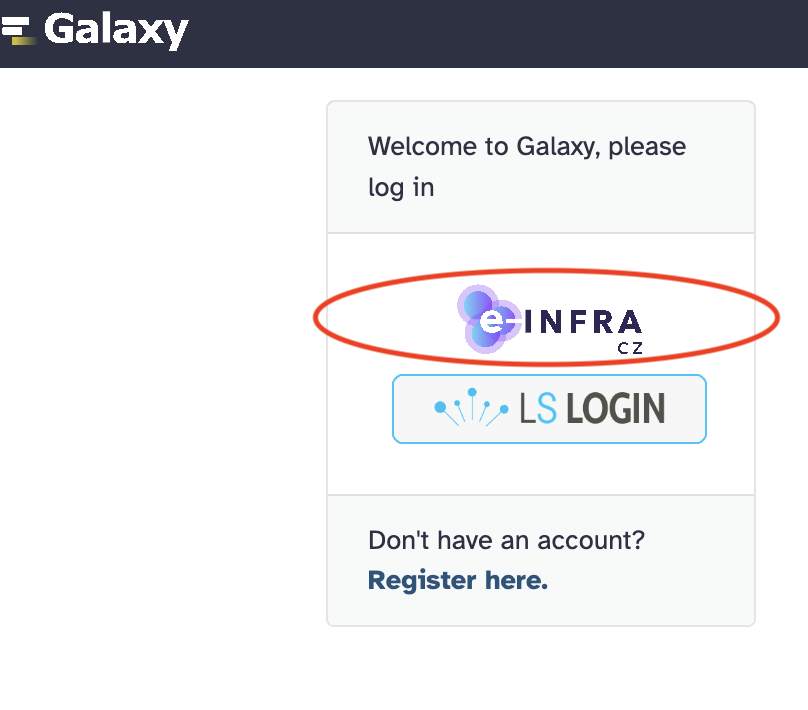 Metacentrum account is required.
Once your registration is approved, proceed to
usegalaxy.cz
and click on the e-Infra CZ logo in the upper left corner of the login page.
Metacentrum account is required.
Once your registration is approved, proceed to
usegalaxy.cz
and click on the e-Infra CZ logo in the upper left corner of the login page.
The workflow described bellow looks complicated a little. Don’t be scared, we make the sequence of manual steps to show them in detail. They can be glued together to Galaxy workflow and run with a single click, as shown at the end of the section.
Classify an image
Let’s start with a simple task. One would not need Galaxy for this but it’s a necessary baby step to show how Galaxy wraps the LLM invocations.
- Pick a favourite photo from your phone and save it as medium sized (800x600) file, preferably in PNG format (the safest one wrt. weird format dialects of JPEG etc.).
- Click “Upload” button in Galaxy, then “Choose local file”, pick the file, and click on “Start”. Once the file is uploaded (“100%”), click “Close”
- Create a file
classes.txtan fill it with categories you would like the images to be classified to. I used:and upload it to Galaxy in the same way as the image.music cat flower food ...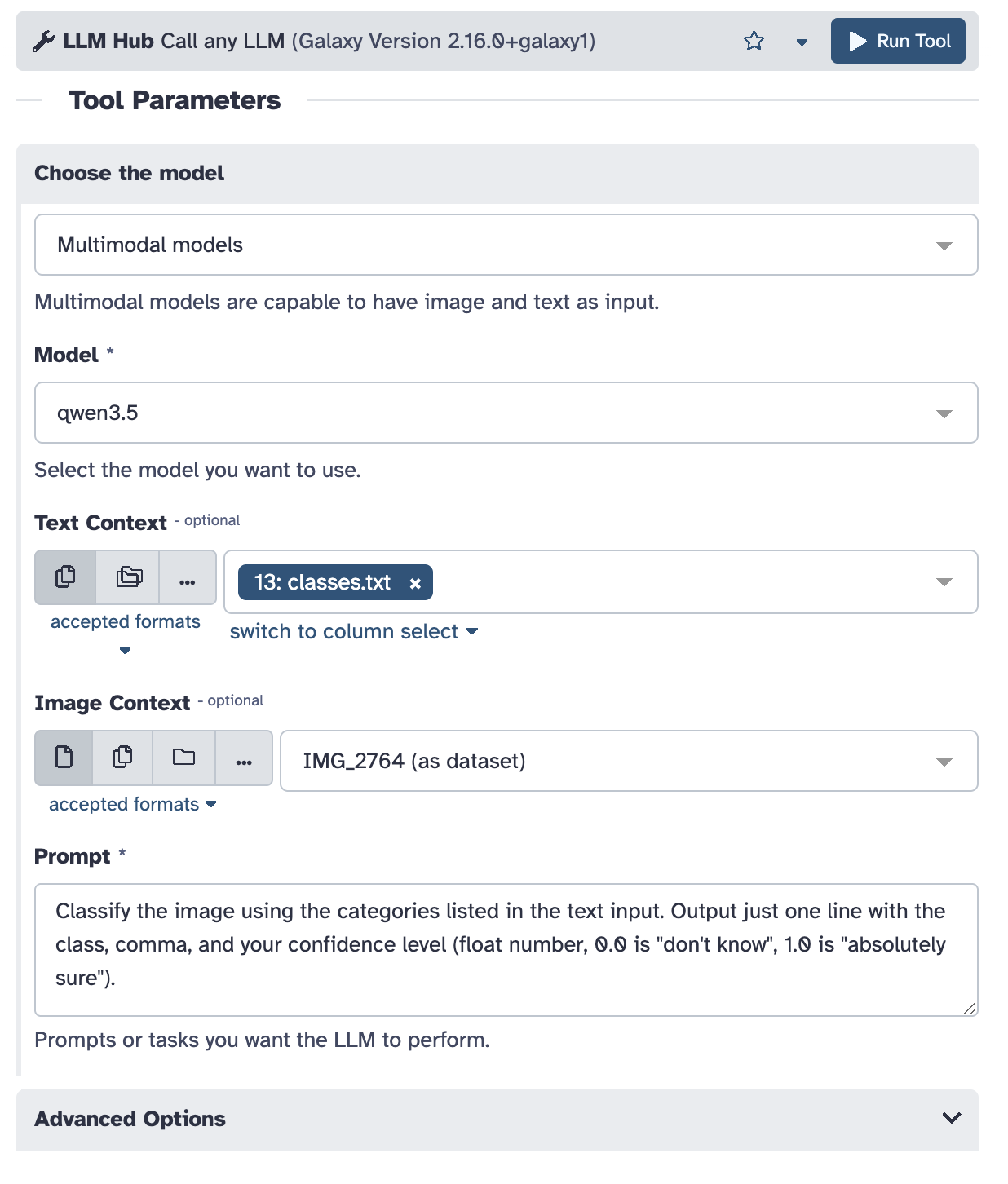
- Click “Tools” and search for “LLM Hub”, and click on it to get the tool input dialog.
- Fill in the dialog in a similar way:
- Pick “Multimodal models”, choose one of them, “qwen3.5” worked for me
- Pick
classes.txtas the “Text context” and your photo for “Image Context” - Provide suitable promt to tell the model what to do. Be picky to avoid too much LLM creativity, I used:
Classify the image using the
categories listed in the text input.
Output just one line with the class,
comma, and your confidence level
(float number, 0.0 is "don't know",
1.0 is "absolutely sure").
- Click “Run Tool”. It starts crunching, and depending on the load of our LLM service, you get the results in few seconds or minutes.
Classify images in a batch
Galaxy provides specific support for handling multiple (even numerous) files in batches.
- Start with the upload dialog again but instead of the default “Regular” tab choose “Collection” now.
- Click “Choose local file” and select multiple image files now (PNG, 800x600 approximately). Stick with a dozen or two – the more you have, the more fun will come, but also the more time you will have to wait.
- Click “Start” followed by “Build” (once the latter is enabled)
- Enter “images” as the list name and click “Create list”
- Invoke the “LLM Hub” tool again; this time, choose the folder icon for “Image Context” and pick the “images” list as the input.
Depending on the number of files and current LLM load, processing will take a while now, have coffee in the meantime. The result is a list of single line files again, each corresponding to an image in the input list.
Concatenate classifications into a single table
- LLMs tend to output incomplete lines which may break the result contatenation.
This can be fixed by calling the “Text reformating” tool.
Find it in the tool column, provide the output (the whole list) of the LLM Hub (typically, Galaxy names it like “LLM Hub (qwen3.5) on collection XX”), and fill the magic line
as “AWK Program”.
{print $0} - One more hack – LLM tools annotate their output to be “markdown” type. We need to change it to “csv” for further processing. Click on the pencil icon (“Edit attributes”) with the output of the previous step (“Text reformatting on collection …”), choose “Datatypes” tab, pick “csv” and click on “Save”.
- Search for the “Concatenate datasets” tool, choose “Text reformatting on collection …”, and run. It produces one table with the classification results.
Filter out low-confidence classifications
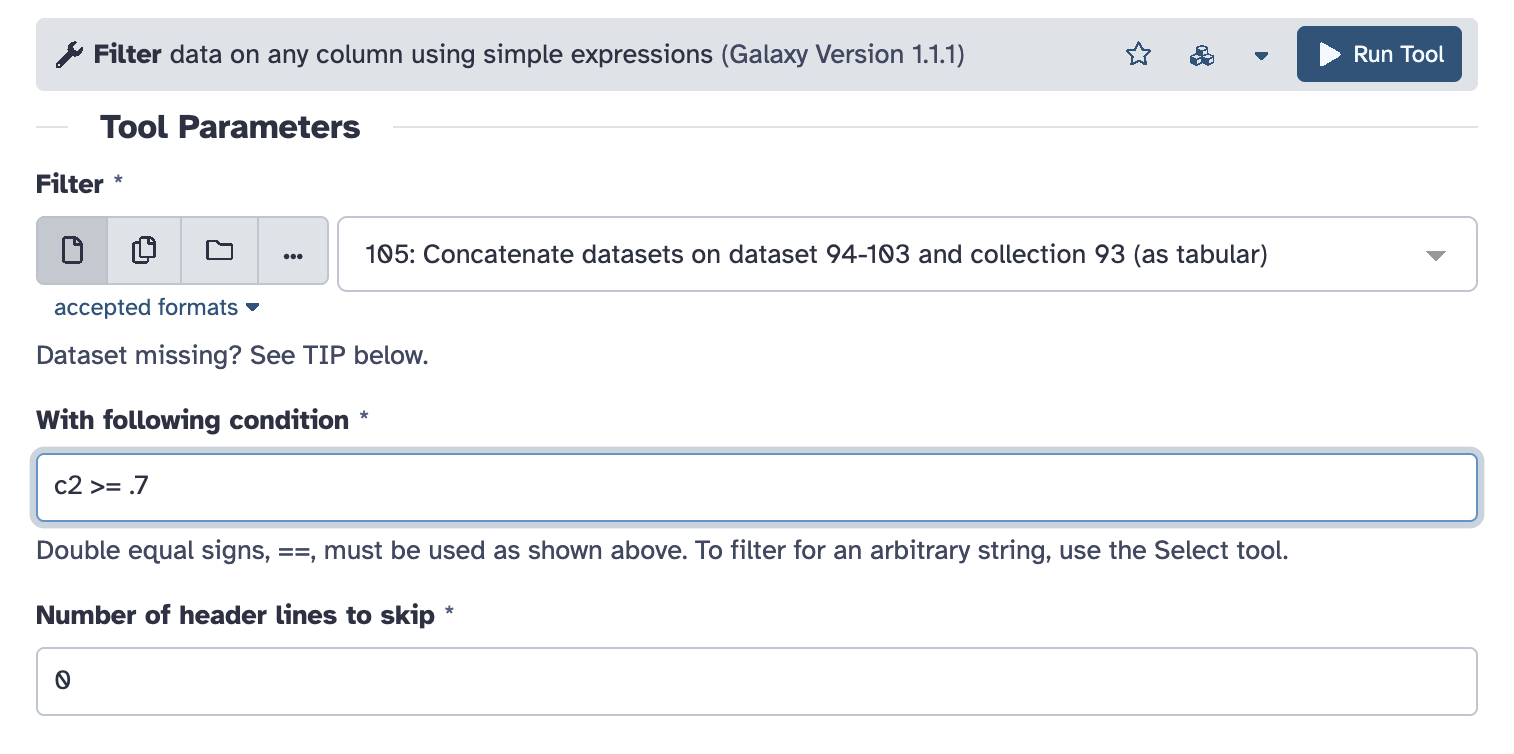 We asked LLM to express how sure it is about classification of each image.
Now it is time to exclude not so confident ones.
We asked LLM to express how sure it is about classification of each image.
Now it is time to exclude not so confident ones.
Run the “Filter” tool on the previous input (“Concatenate datasets …”) specifying the condition of the filter. The confidence is the second column in the table, hence “c2”. Choose whatever value you find reasonable with your classified images.
Count the results
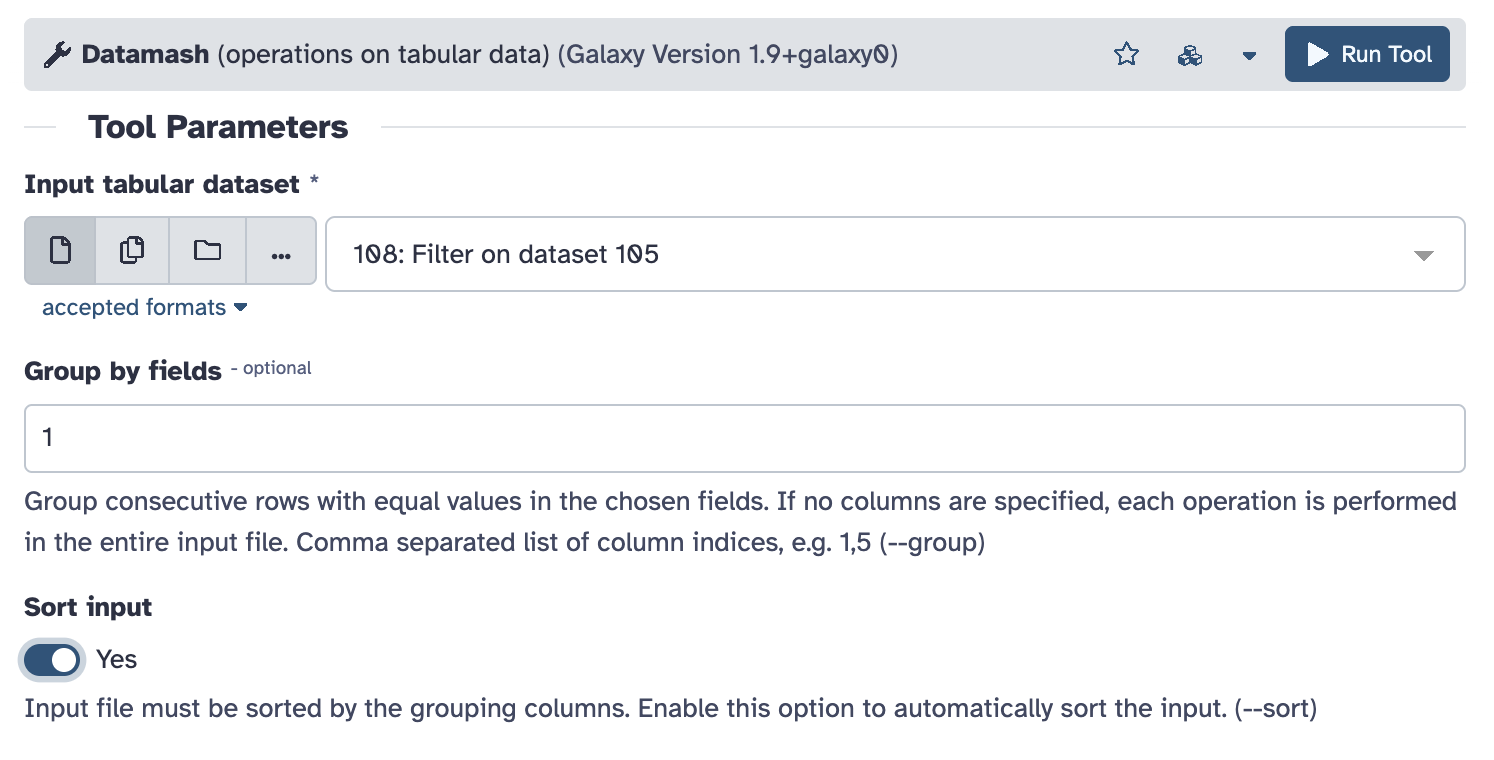 Finally, count the number of distinct classifications with the “Datamash” tool.
Use the output of previous step (“Filter on dataset …”) as input, set “Group by fields” to “1” (the first column), and enable “Sort input” checkbox. Leave all other as defaults, in particular “Operation to perform” to be count on column 1, and run.
Ask LLM what it thinks about you
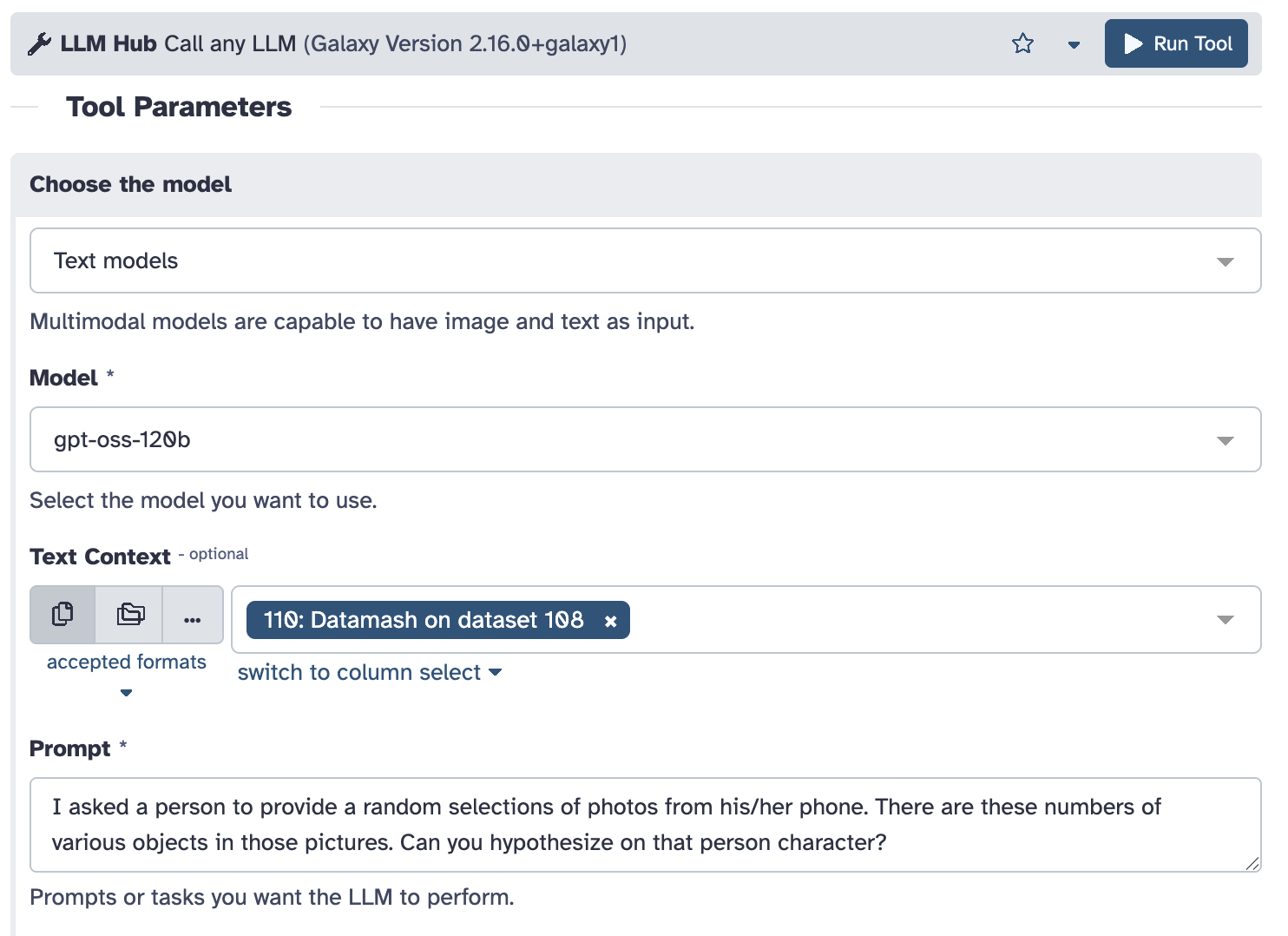 Finally, call LLM again to assess the table with the counts.
In this case, choose “Text models” and “gpt-oss-120b”, pick output of the previous step for input,
and provide suitable prompt. Mine was:
Finally, call LLM again to assess the table with the counts.
In this case, choose “Text models” and “gpt-oss-120b”, pick output of the previous step for input,
and provide suitable prompt. Mine was:
I asked a person to provide a random
selection of photos from his/her phone.
The input are numbers of various objects
in those pictures. Can you hypothesize on
that person character? Use the language
and attitude of Sherlock Holmes.
Optionally, “Temperature” parameter among “Advanced Options” can be set above 1.0 to take the LLM high and produce more hallucinating outputs.
Putting it all together
 In previous steps we demonstrated manual, exploratory approach to data analysis in Galaxy.
This is typical in the initial stage when the user defines the exact processing steps.
In previous steps we demonstrated manual, exploratory approach to data analysis in Galaxy.
This is typical in the initial stage when the user defines the exact processing steps.
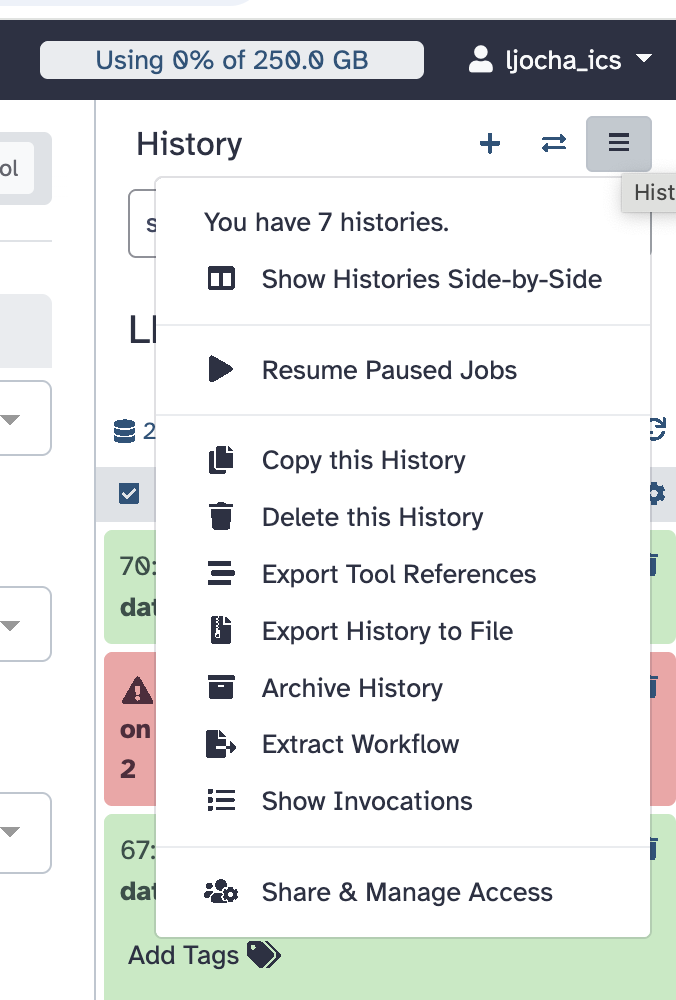
Once the procedure settles down, it is desirable to make a reproducible record of it. Galaxy is particularly good in it, the is “Extract Workflow” command in the history menu in the upper right corner of the interface. Working with it can be a bit tricky, detailed description is beyond the scope of this article, refer to the documentation or proceed with trial and error.
The workflow is a graph of tools connected by edges whenever the output of one is used as an input
of another (see also the heading image of this article).
Besides this connectivity, the additional parameters and settings of tools invocation are recorded
as well.
With a well-designed workflow, the user just provides the inputs, he/she tunes some parameters eventually, and everything gets executed automatically, producing the final results.
My extracted and polished worfklow of the profile-the-photos example is available here.
What next?
One could extend the workflow with other image processing tools, there are dozens of them available in Galaxy. Additional image features can be merged with classification, added as input to the final assessment, getting it more accurate.
Or stop playing with this artificial example and head towards serious scientific usege directly. We will be happy to provide support at galaxy@cesnet.cz.
It’s all up to you, enjoy.